This article describes in detail how to recover files after a virus attack using Recuva.
After a virus attack, your files may be deleted or damaged. Recuva helps you recover lost data. Open Recuva. Select the type of files you want to recover. If you need to recover all types of files, choose the All Files option. Click Next.
Specify the location where the lost files were. You can select a specific folder, drive, or even a connected device. If you are unsure where the files were, choose the I'm not sure option. Click Next.
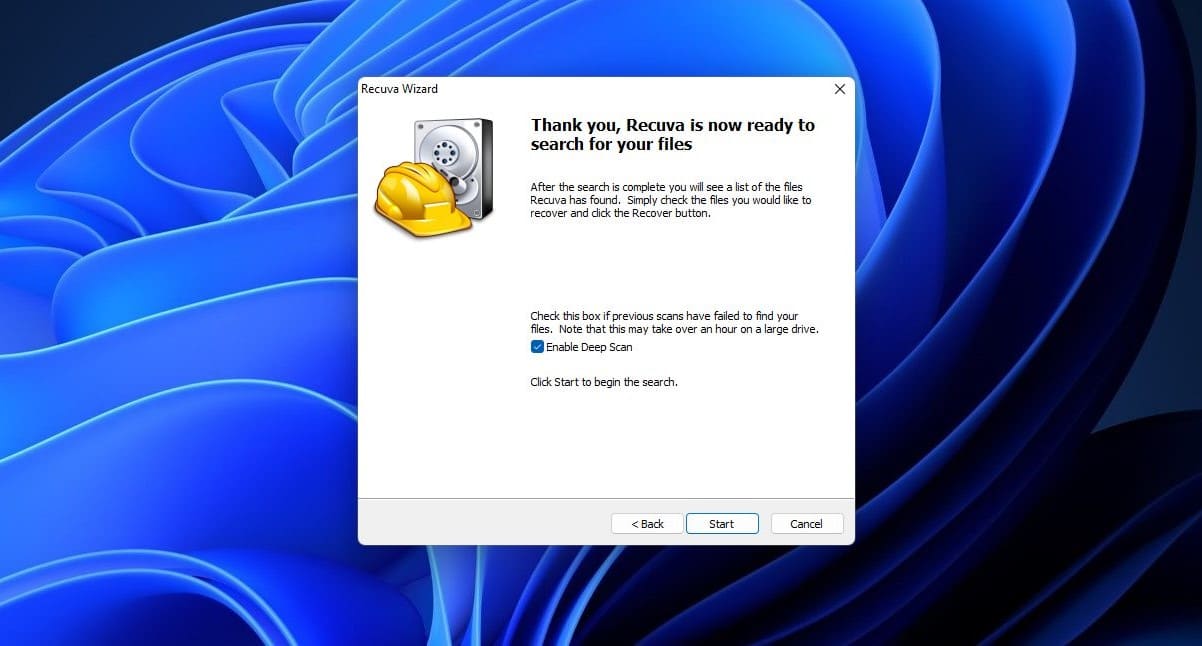
Recuva will offer to perform a deep scan. If you did not find the necessary files after a regular scan, choose the Enable Deep Scan option. This will take more time but increases the chances of successful recovery. Click Start to begin the scanning process.
Wait for Recuva to complete the scan. This process can take from a few minutes to several hours depending on the size and condition of your disk.
Click Recover and choose a location to save the recovered files. If some files are not recovered or are damaged, repeat the scanning process using different settings or locations.